Press play
 ▶ Watch the class
Opens the full class. Click "Play with voice-over" on the start card.
Each screen plays its voice-over, waits 5 seconds, then moves on. The points on each slide appear as the voice reaches them, so you never read ahead of the explanation.
What you will learn
01 AI is a fast intern
It drafts. You decide. It is great at first drafts, ideas and quiz questions. You still check facts, safety rules and the level of your learners.
02 Pick one tool and open an account
Copilot, ChatGPT, Gemini, Canva AI and Claude, each with the one job it does best. Then a two minute guide to signing up.
03 The 5-block prompt
Role, context, task, limits, format. Brief AI the way you would brief a substitute teacher. Leave a block out and it guesses wrong.
04 A lesson, a quiz and three levels
Build a 30 minute lesson, a 2 + 2 + 1 quiz with an answer key, and three activities that reach the same goal by different routes.
05 Admin work and safe use
Sponsor emails, meeting actions and attendance charts. Then the traffic light rule for what never goes into a public AI tool.
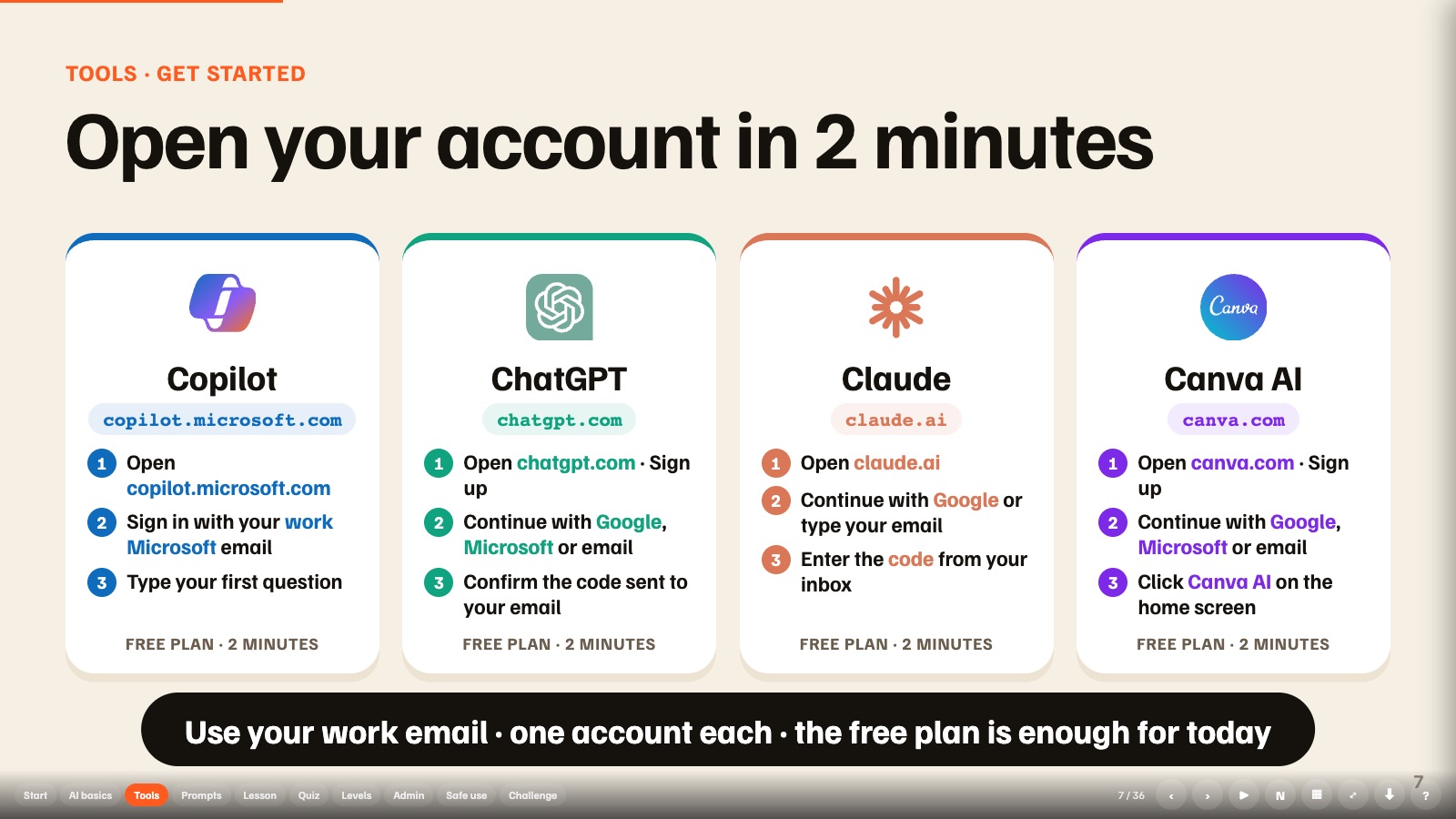
Open your account in 2 minutes
Every tool uses the same three steps. Open the website. Sign in with your work email or Google. Confirm the code sent to your inbox. The free plan is enough for the whole class.
One prompt to copy
This is the prompt card from the class. Change the words in brackets for your own subject. Keep the five blocks.
Context My trainees are [first-year diploma students].
Task Create [a 30-minute lesson on inventory].
Limits Keep it [simple English, one activity].
Format Show it as [a table with timings].
AI writes the first draft. You make it good.The one line to remember
The traffic light rule
Take it with you
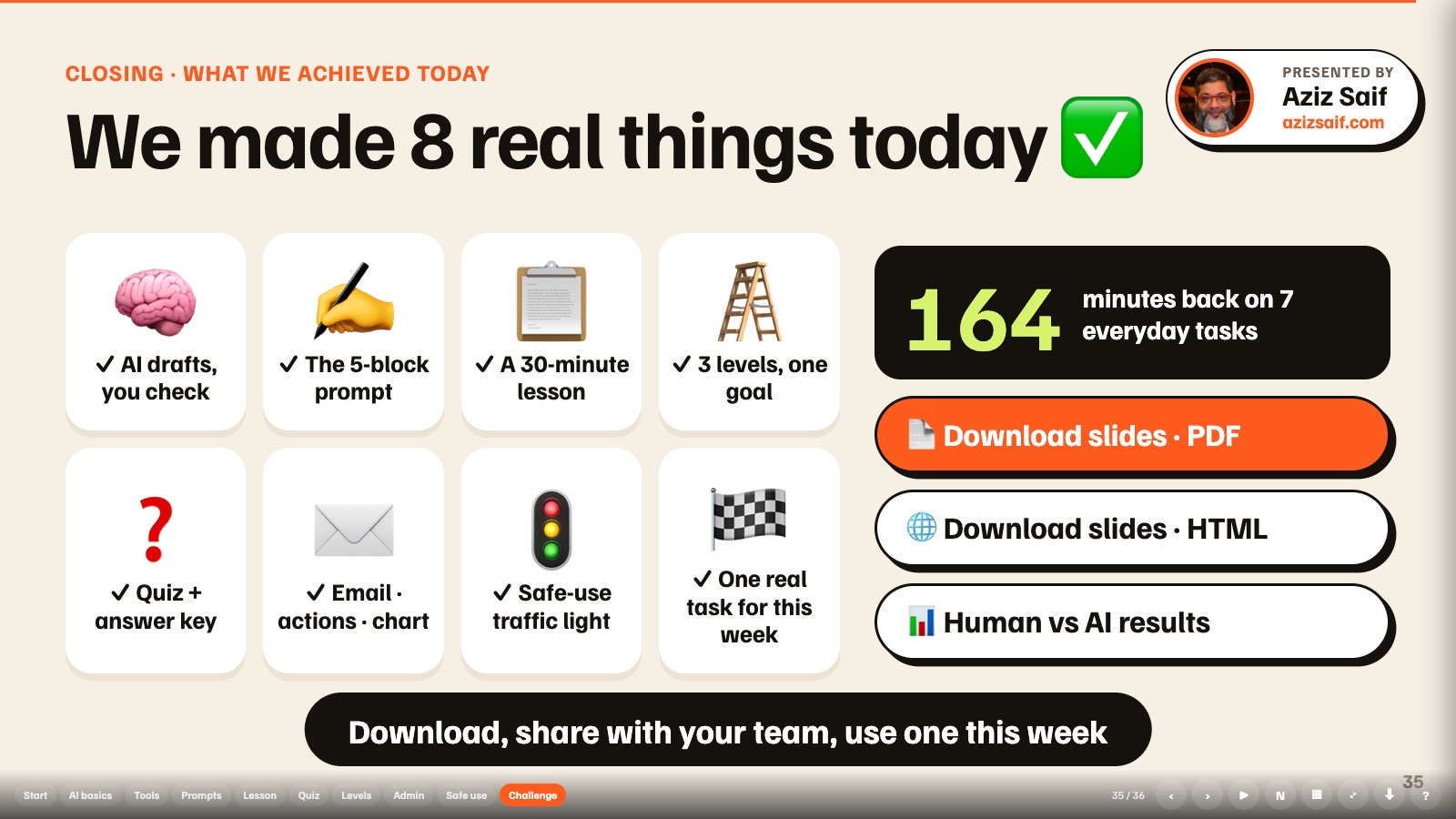
*The 164 minutes is a typical estimate across seven everyday tasks, not a measured result. The results page shows each task side by side.
Common questions
Is the AI class really free?
Yes. The full class, the slides and the results page are free to watch. You only need a free account on one AI tool to follow the activities.
How long does the class take?
About 14 minutes if you let it play straight through. Each screen has a voice-over, then a 5 second pause before the next one. Add a few minutes for each activity you pause to try.
Which AI tool should I use?
Use the one you already have. Copilot is easiest if your school or office runs on Microsoft 365. ChatGPT, Claude and Gemini all work for every activity. Canva AI is best for slides and posters.
Do I need a paid AI plan?
No. The free plan of any of the tools is enough for everything in the class.
Is it safe to paste student data into AI?
No. Never paste names, ID numbers, grades or health information into a public AI tool. The class teaches a traffic light rule for this, and in Saudi Arabia the Personal Data Protection Law applies.
Can I present it live to my own team?
Yes. Click "I will present it myself" on the start card. You get the slides, timers and trainer notes. Press N for the notes and G for a grid of every slide.