Claude, screen by screen.
21 screens in the order the trainer shows them. Left: what is on screen. Right: the clicks to copy. Each screen has a small ▶ timestamp link if you want to see it. Everything runs in the Claude desktop app.
▶ Original video: Vaibhav Sisinty, 32 min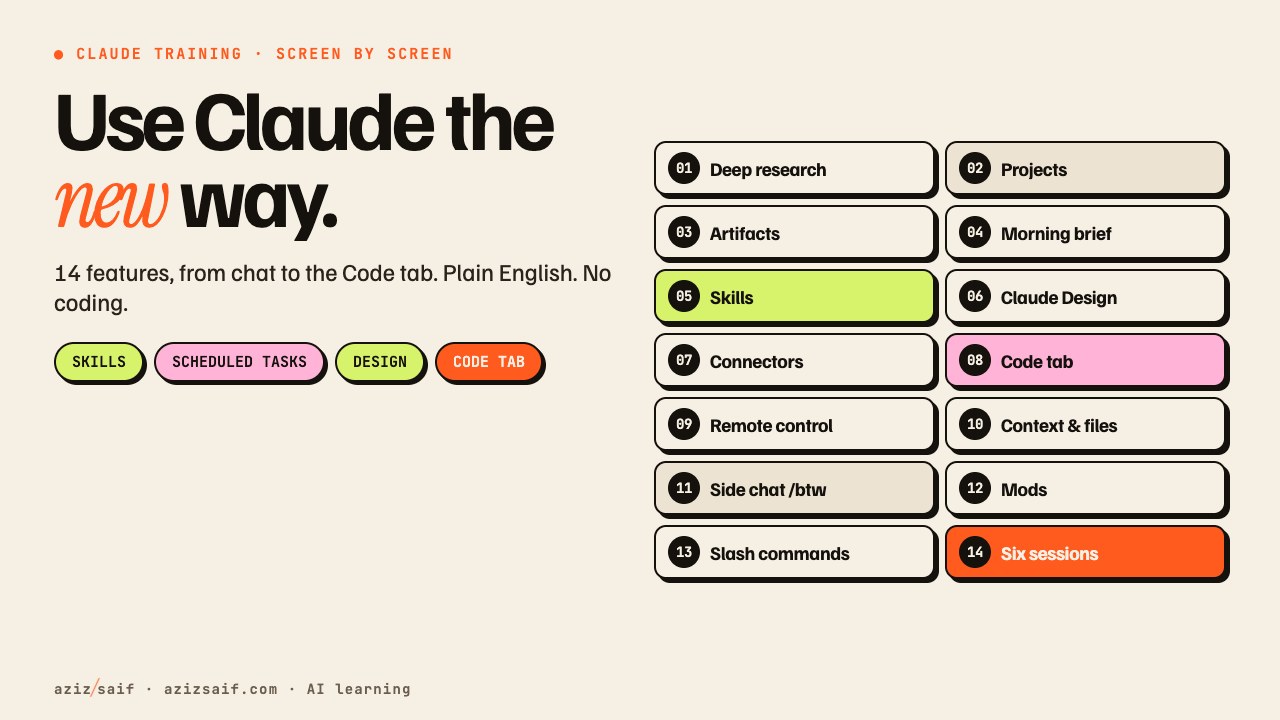
He opens with a finished research report and points at the Code tab. The name sounds like a black terminal for engineers. Today it lives inside the Claude desktop app and looks like the normal chat box.
- Download the Claude desktop app (Mac or Windows). Everything in the video runs there, not in the browser.
- Find the Code tab next to Chat. Do not worry about the name. You will not write code.
In the Code tab he opens Artifacts, starts a new doc and types one line: do deep research on cryptocurrency, run five parallel sub-agents. Claude writes itself a to-do list first, then a doc opens and fills up while the research runs. A Background tasks panel shows five helpers, how many are done and which model each uses.
- Code tab → Artifacts → New doc.
- Type:
Do deep research on [topic]. Run five parallel sub-agents. - Watch the to-do list, then open Background tasks to peek at any helper.
- Edit the doc like a Google Doc: tables, images, checklists, wider page.
- Share: private, anyone with the link, or invite a viewer or editor. Export to Word, PDF, Markdown or Google Docs.
Three real builds from Reddit and X. One man replaced the ad-filled Samsung TV home screen with a clock and only his apps. Another wired a USB lamp to Claude hooks so it lights up when Claude needs him. A third rebuilt a slow Plex app for his LG TV. None of them are engineers. They described what they wanted.
- Write down one daily annoyance that no company will fix for you. That is your first Code tab job.
Back in the normal chat. He shows the model picker and effort level in the box, the permission picker next to it, dictation, voice mode, and Search, which looks through chats, artifacts, sessions, projects and scheduled tasks at once.
- Big model + high effort for hard work. Turn both down for quick questions.
- Use dictation or voice mode when a problem is easier to say than type.
- Use Search to find anything you made with Claude.
He opens a project used for his community resources. Every chat inside shares the same instructions, files and folder. He then makes a new one called test.
- Projects → New project.
- Give it a name and say what it is for.
- Add instructions and files: the brief, brand guide, notes.
- Create. Every new chat inside it already knows the client.
The Artifacts page shows every doc, deck, design and dashboard Claude made, as tiles you can share by link. It works the same in chat and in the Code tab.
- Open Artifacts in the sidebar.
- Pick up last week's file and keep going.
- Send any artifact to family, friends or your team as a link.
A morning brief appears at 8 AM with the day's calendar and important emails. Nobody typed anything. To set it up he clicks Scheduled → New task → Create with Claude and types one sentence. Claude asks him to connect Gmail and Calendar and asks two questions.
- Scheduled → New task → Create with Claude.
- Type:
Set up a scheduled task that gives me a morning brief each day at 8 AM. Keep it short and scannable. - Connect Gmail and Calendar when asked. Answer its questions.
- Run now to test it. Pause, edit or delete any time.
- Or start from a template: daily briefing, inbox triage, meeting prep, weekly review, content ideas.
He opens Discover with 57 categories of ready-made skills (Engineering alone has over 1,200). Under Customize he switches on built-in skills. Then Add → upload, create with Claude, or record your screen. On a Mac Claude watches the recording and turns it into a skill.
- Customize → Skills. Switch on the built-in ones you need.
- Discover: search your job before you write your own. Someone has probably done it.
- Add → Record screen. Do the boring task once (for example the daily Google Sheet update).
- Good skill ideas: client proposal format, weekly report, pre-invoice checklist.
He shows a 5-slide deck on Claude's top slash commands, all in one style, made in the Design tab. If Design is not in the sidebar: More → Edit sidebar → drag it up → Done. Inside he builds a design system: colours, type, spacing, corner radius, components, accessibility and icons. Then asks for the deck on Opus 5.5 at medium effort. Every slide stays editable.
- More → Edit sidebar → drag Design up → Done.
- Design → Design system: add your colours and fonts, or describe the feel you want.
- Ask:
Five-slide presentation on [topic] using my brand. - Click any text to change it, or leave a comment on a slide and let Claude fix it.
- Motion (video) is beta on Team and Enterprise only.
Customize → Connectors → Gmail → Add. A browser opens, he logs in and comes straight back connected. Then plugins: he copies the GitHub link of a design plugin, goes to Customize → Plugins → Create with Claude, pastes the link, picks Install and chooses both the Claude app and Claude Code.
- Customize → Connectors → pick Gmail or Notion → Add → log in.
- Ask:
Find the last three emails from [client] and tell me what they are waiting on. - Plugins: copy a plugin's GitHub link. Do not download anything.
- Customize → Plugins → Create with Claude → paste the link → Install → choose app, Code, or both.
Same chat box, but Claude works inside your files. He picks where it runs: Local (your computer and files) or Cloud (keeps going when the app is closed). Then he picks a folder. The folder is Claude's desk. Docs, slides and design work on the free plan. The Code tab needs Pro or above.
- Code tab → choose Local or Cloud.
- Pick one folder per job so Claude stays focused.
- Explain what you want in plain English, or your own language.
He opens the permission menu. Manual asks before every edit, command or web visit. Accept edits changes files in your folder without asking. Plan looks around, writes a plan and changes nothing until you approve. Auto skips routine questions while a second model checks each action. Example: clean up the Downloads folder. In Plan mode it first lists 40 files, invoices to one folder, photos to another, old installers deleted. Bypass in settings asks nothing. Anthropic says use it only on a spare test machine.
- Start every new job in Plan mode.
- Read the plan. Say yes or change it before a single file moves.
- Move to Auto once you trust the job.
- Leave Bypass off.
In the Code tab he opens Artifacts, picks the design system made earlier and types: create a presentation on Claude Cowork vs Claude Code. Environment is set to This computer, pointed at one new folder in Downloads. He skips Fast mode because it costs about double from extra usage credits.
- Code tab → Artifacts → choose your design system.
- Type:
Create a presentation on [topic]. - Point the environment at one new folder for the job.
- Leave Fast mode off unless you are in a hurry.
He types /remote-control on the laptop, opens the Claude app on his phone, and the same session is there, still working. He sends the next instruction from a taxi in Bengaluru traffic.
- Type
/remote-controlin the session on your computer. - Open the Claude app on your phone. The session is there.
- Check progress and send the next instruction on your way home.
The Context panel shows how full Claude's whiteboard is (up to a million tokens). When it fills, Claude squeezes older parts into a summary by itself. He also shows the connectors panel, a terminal and a git view (not needed), the built-in browser (separate from your Chrome, so none of your logins) and the Files pane with every file Claude made.
- Open Context to see how much memory is used.
- Use the built-in browser to preview what Claude built. It asks before it clicks or types on a site.
- Open and edit files in the Files pane without going to Finder.
While the deck builds he opens a side chat with Cmd + ; on Mac (Ctrl + ; on Windows) and asks what it is covering. Answer in seconds: slides 1 to 4 done, 5 to 9 planned. The main job never stops and nothing from the side chat goes back into it.
- Press Cmd + ; (Mac) or Ctrl + ; (Windows), or type
/btw. - Ask anything. The main job keeps running.
- Side chats close when you quit the app.
Mods came out at the start of October. He opens a new session and types: create a mod that shows a progress bar and the estimated cost while a task runs, trigger it with /agent-info. Claude writes the mod and reloads the app. The bar now appears when a prompt ends with /agent-info and disappears when the job is done.
- New session →
Create a mod that shows a progress bar and estimated cost while a task runs. Trigger it with /agent-info. - Other ideas: a timer per job, an alert when a long task ends, a to-do panel next to the chat.
- A mod runs with your permissions. Only use mods you made or trust.
Here a project starts from a folder. Every chat inside shares that folder and its files. He makes a section called Crypto, moves an old chat into it and adds a new one asking what Bitcoin is. Scheduled tasks and Customize work the same as in chat.
- Pick a folder → start a chat. That is the project.
- One project per big piece of work: a client, your channel, your business.
- Make a section and move older chats into it.
He types a slash and his own YouTube editing skill pops up. Then seven commands, least used first: /advisor (a stronger model gives a second opinion at key moments), /clear (fresh session, empty memory), /usage or /cost (what the session cost), /doctor (checks your setup and fixes it), /deep-research (research job on a topic), /btw (side chat) and /goal.
- Type
/to see your skills and commands. /clearwhen Claude mixes up two jobs./usagebefore a big job./doctorwhen something breaks./goal All ten product descriptions written, each under 100 words.Claude keeps going until a second model confirms the goal is met.
Six sessions on one screen, each on one part of the same YouTube video: thumbnail, title, outline, visuals, editing. He typed one prompt in the main session asking it to start a thread for each part. The main session acts like a producer. Each nested session has its own memory, so nothing gets mixed up. Drag sessions across, or ⋯ → Open in split view, to watch all six.
- In the main session ask:
Spin up a separate session for each part of this job: [part 1], [part 2] ... - ⋯ → Open in split view for each session.
- Talk only to the main session. It hands you one plan at the end.
- On Pro and Max a cloud version is coming to Projects through a waitlist.
He ends with three steps to stop using Claude like a search box.
- Tomorrow: type your next question into the Code tab in Plan mode. On the free plan, make a doc or a deck in chat.
- This week: set up one scheduled task.
- Turn one repeat job into a skill.
- Give one big job a /goal.
FAQ
Do I need to code to use the Code tab?
No. You type what you want in plain English, the same as in chat. Claude does the work inside a folder you choose.
Which Claude features work on the free plan?
The video says docs, slides and Claude Design work on the free plan. The Code tab needs Pro or above, and scheduled tasks need a paid plan.
What is the safest permission mode?
Start in Plan mode. Claude writes a plan and changes nothing until you approve. Keep Bypass off unless you are on a spare test machine.
What is the difference between sub-agents and nested sessions?
Sub-agents are helpers inside one session working on one job. Nested sessions give each part of a big job a whole session with its own memory, run by one main session.
Which slash command should I learn first?
/goal. You give a finish line and Claude keeps going until a second model checks that the goal is met.
Hands-on sessions in Dubai, Abu Dhabi and Saudi Arabia, using your own files.
Corporate Claude training →AI learning class →