Make unlimited AI videos free with Claude Code + Remotion.
Install one free skill called Remotion in Claude Code, add the Claude in Chrome extension, and Claude can write, design and render finished videos right on your computer — explainers, product launches, testimonial reels, edited avatar videos and animated data infographics. No render credits, no monthly video tool, runs 100% local. Every command and prompt on this page is copy-paste ready, so you can start making real videos today, then auto-post them with Blotato.
Watch once, then follow the steps
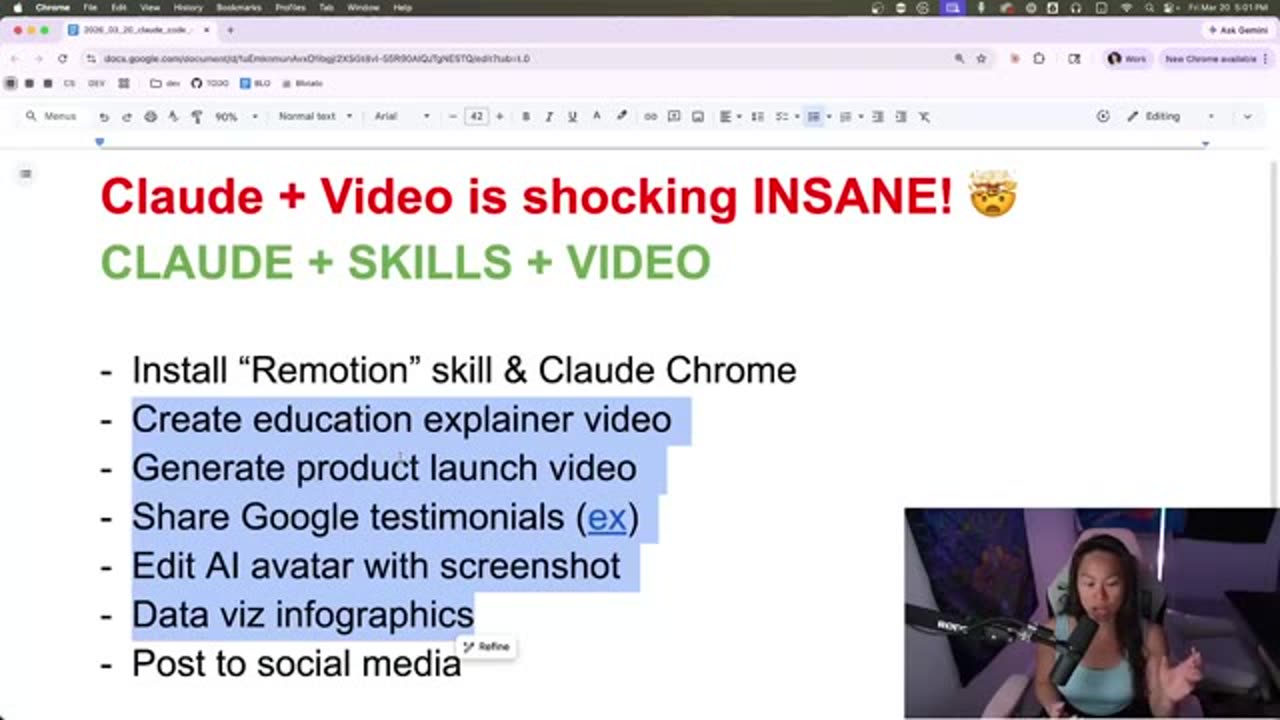
Education animated explainer
An animated concept video (e.g. "how AI agents work") with motion, diagrams and a script — no footage needed.
Product launch from your website
Feed your site URL; Claude grabs screenshots, brand colours and product images and builds a launch video.
Google testimonials reel
Point it at a Google Business Profile; it pulls real reviews into an animated social testimonial video.
Edit an existing avatar video
Drop in raw avatar footage; Claude adds title, captions, graphics and relevant screenshot b-roll over the talking head.
Animated data infographics
Turn a research paper or dataset into an animated chart video — perfect as a talking-head green-screen background.
Auto-post everywhere
Hand the finished clip to Blotato (or your social-automation flow) to publish and schedule across every channel.
Install the free Remotion skill in Claude Code
This needs Claude Code (the terminal / VS Code agent), not the desktop Claude app. The $20/month plan is enough — because it's a skill, it doesn't burn many tokens.
- Open your terminal and move into a working folder. If you don't have one, make a
playgroundfolder and go into it. - Run the install command below. It first installs the skills tool, then Remotion — Remotion takes a few minutes, so let it finish.
- Restart your Claude Code session afterwards so it picks up the new skill.
# make a working folder (skip if you already have one)
mkdir playground && cd playground

# install the free Remotion skill into Claude Code
npx skills add remotion-dev/skillsInstall the pre-built skill Remotion.# you should see the Remotion skill directory with rule files
# project scope:
ls .claude/skills/remotion/
# or global scope:
ls ~/.claude/skills/
# then fully quit and reopen Claude Code so the skill loads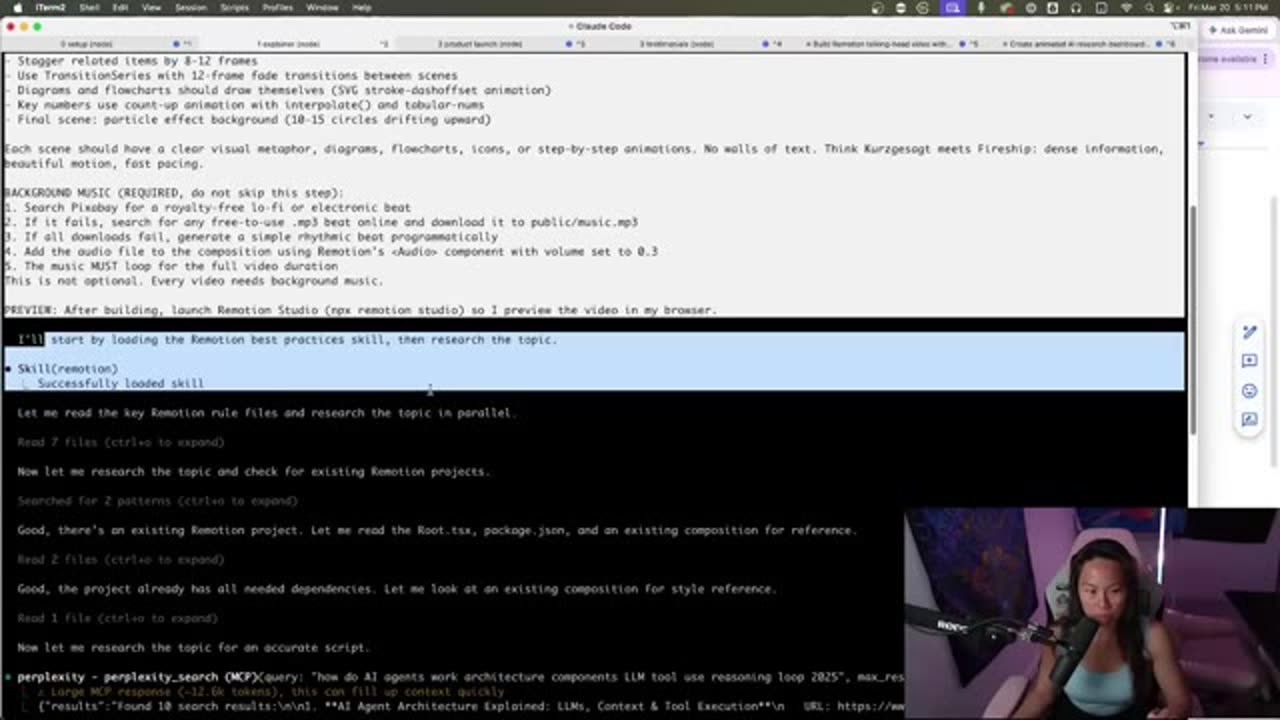
Skill(remotion) · Successfully loaded skill — then Claude reads the Remotion rule files and researches your topic before writing any code.Add the Claude in Chrome extension
- Search for
Claude Chrome extensionon Google (or from Claude) and open the official extension page. - Install it to Chrome — you'll see the Claude icon appear in your browser toolbar.
- That's it. You don't open it manually — Claude Code detects the extension and launches it automatically when a prompt needs screenshots.
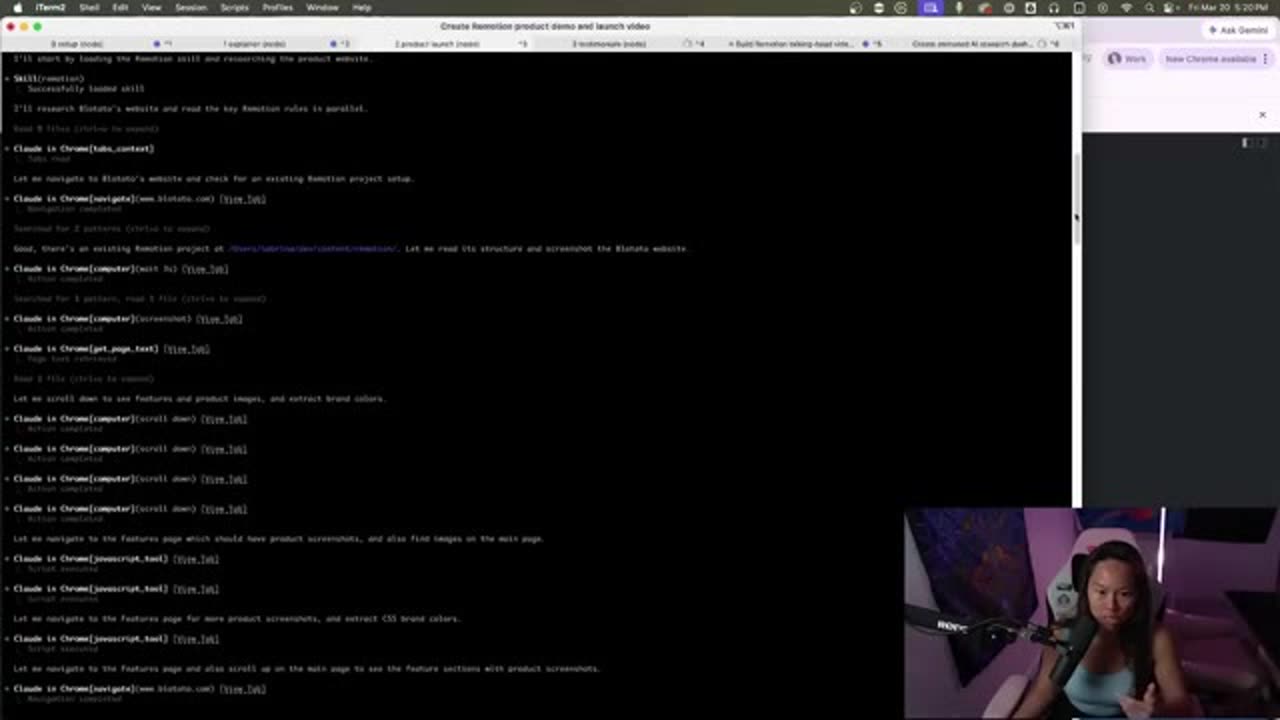
Claude in Chrome [screenshot] mean Claude is driving your browser — navigating the URL you gave it, scrolling, and pulling images, brand colours and copy straight into the video.Five video prompts — copy, paste, generate
[bracketed] parts for your own business, then let it write the script, design the scenes and render. Tip: tell it to "ask me 3 questions about my brand kit" and it will match your colours and fonts.① Education animated explainer
A concept video with motion, diagrams and a narrated script — no footage required.
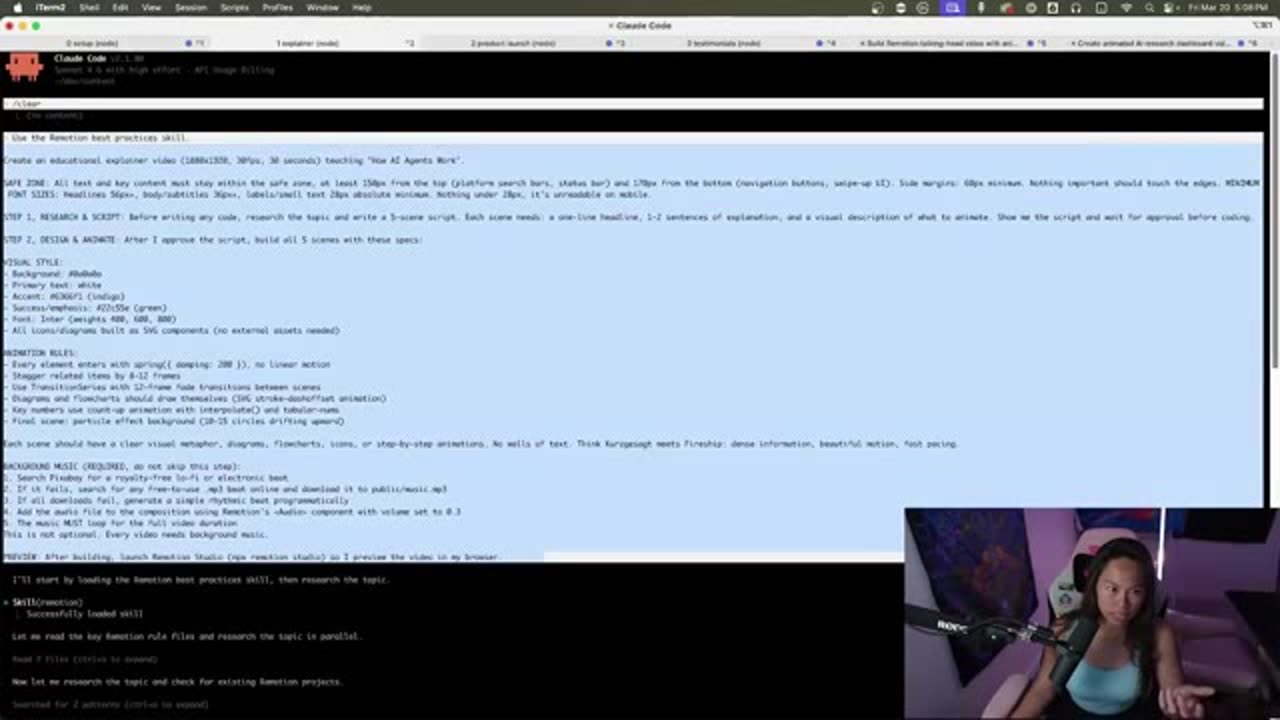
Using the Remotion best-practices skill, create an educational
explainer video titled "[How AI Agents Work]".

Format: 9:16 vertical, 30fps, about 30 seconds.
Design: dark background, white primary text, one accent colour,
big safe margins so nothing overlaps social UI.
Structure: a 1-line hook, then 5 scenes, each one new headline +
1-2 sentences, with a clear visual metaphor / diagram / icons.
No walls of text. Use staggered entrances and smooth transitions.
Add a soft royalty-free background track at low volume.
First write the script + scene outline and wait for my approval
before coding. After approval, build it and launch Remotion Studio
so I can preview it in the browser.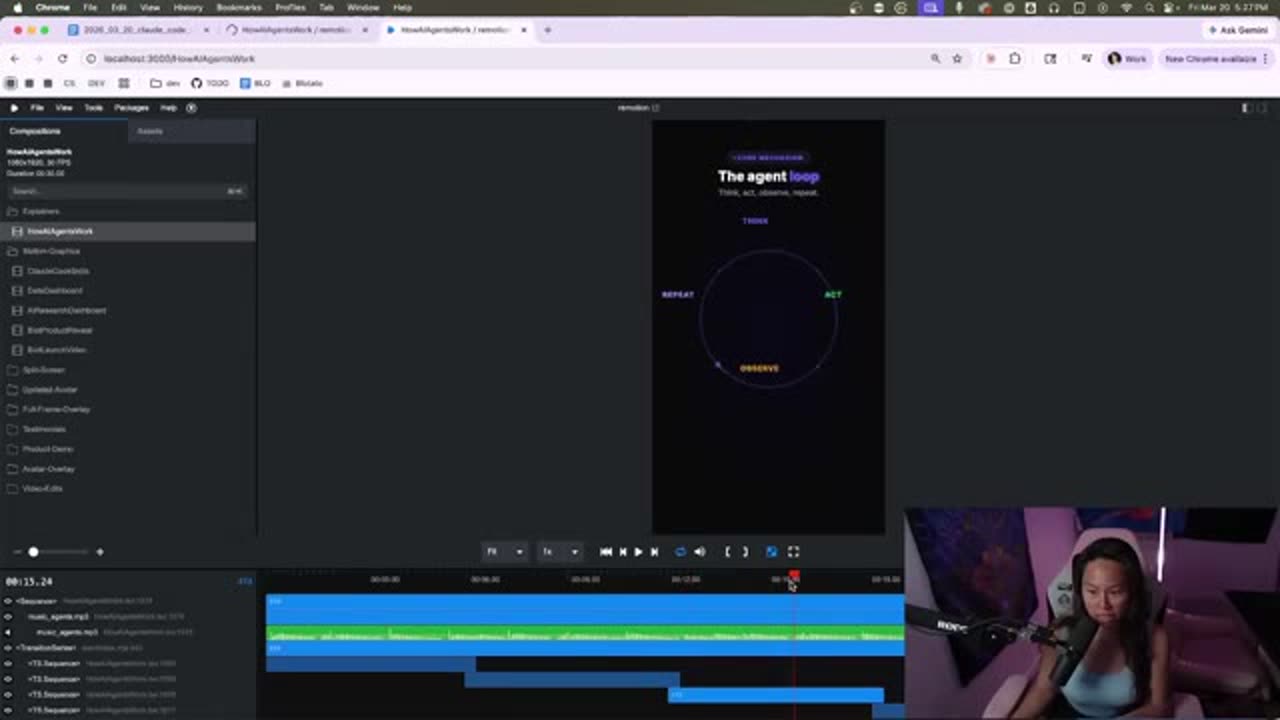
② Product launch from your website
Feed your site URL — Claude in Chrome grabs screenshots, brand colours and product images automatically.
Using the Remotion skill, make a product launch video for my
website [https://www.eatcookjoy-uae.com].

Use Claude in Chrome to open the site, identify the product, pull
the brand colours, key features, social proof and product images
(download the product images and embed them in the video).
Then write a 6-scene storyboard for a punchy launch video,
9:16, on-brand. Show me the script + storyboard first, then build
it and open Remotion Studio to preview.③ Google testimonials reel
Great for clients or your own business — pulls real Google reviews into an animated social proof video.
Using the Remotion skill, create a social-media video showcasing
Google Business reviews for [business name / Google profile URL].

Use Claude in Chrome to open the Google Business Profile and read
3 real reviews. Build a 9:16 video with a strong hook, each review
as an animated card with star ratings, and a closing CTA.
Use a clean light theme. Keep all text inside the safe zone so it
never overlaps the social buttons or search bar.
Ask me 3 quick questions about my brand kit, then match those
colours. Show the storyboard first, then build and preview in
Remotion Studio.
④ Edit an existing avatar video
Drop in raw footage (e.g. a HeyGen avatar). Claude adds a title, animated captions, graphics and screenshot b-roll over the talking head — using FFmpeg to read the audio and transcript.
Using the Remotion skill, edit my existing video at
[public/avatar.mp4].

Use FFmpeg/Whisper to transcribe the audio and align captions.
Add: an animated title card, clean animated sub-captions at the
bottom, and relevant b-roll — for each tool/course I mention, use
Claude in Chrome to fetch a screenshot of that website and overlay
it while I'm talking about it.
Keep my original audio. Output 9:16. Show me the transcript +
overlay plan first, then build and open Remotion Studio.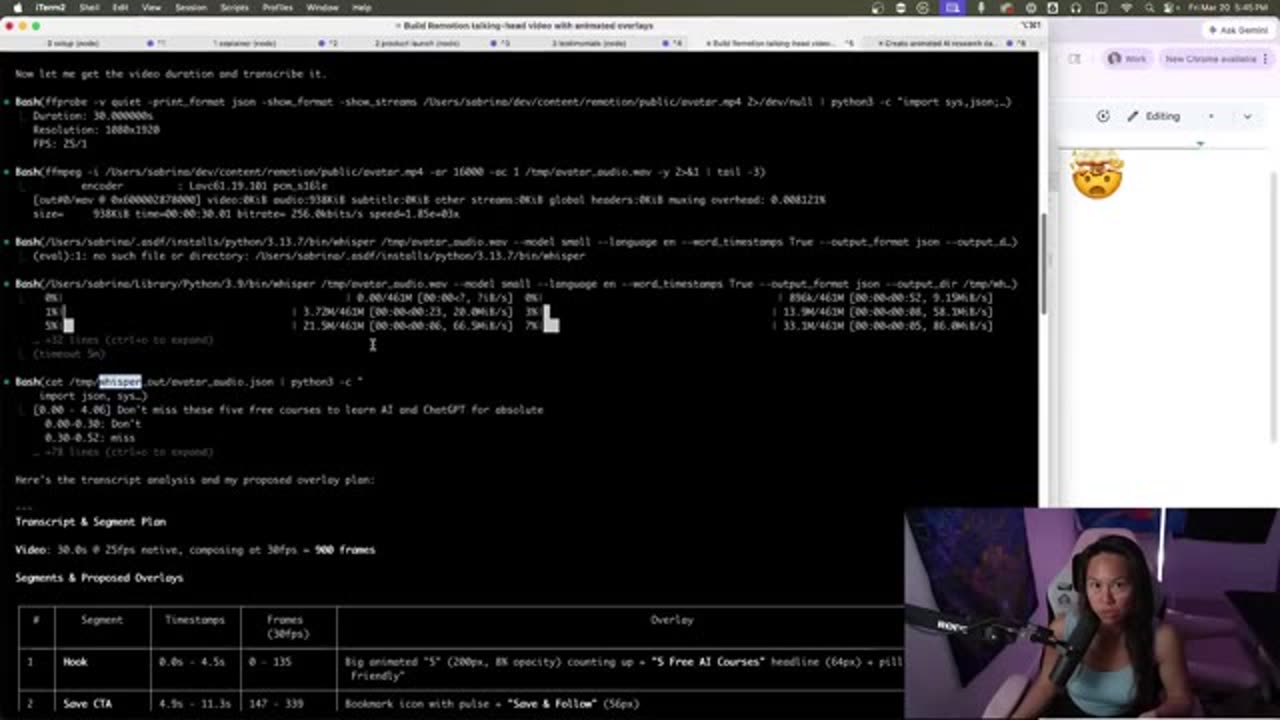
⑤ Animated data-viz infographic
Turn a dataset or research paper into an animated chart video — ideal as a green-screen background you talk over.
Using the Remotion skill, create an animated data-visualization
video about [the AI research explosion / your topic].

1080x1920, 30fps, ~15 seconds, dark theme.
Panel 1: a KPI hero number with a count-up animation + source.
Panel 2: an animated horizontal bar chart by subfield.
Panel 3: a line chart that draws left-to-right with points
popping in and a gradient fill below the line.
Pull the numbers from [paste data / cite a research paper];
if no CSV exists, research the data and create one.
Add a low-volume background track. Show the proposed dashboard
first, then build and preview in Remotion Studio. Afterwards I may
ask you to switch it to a light theme.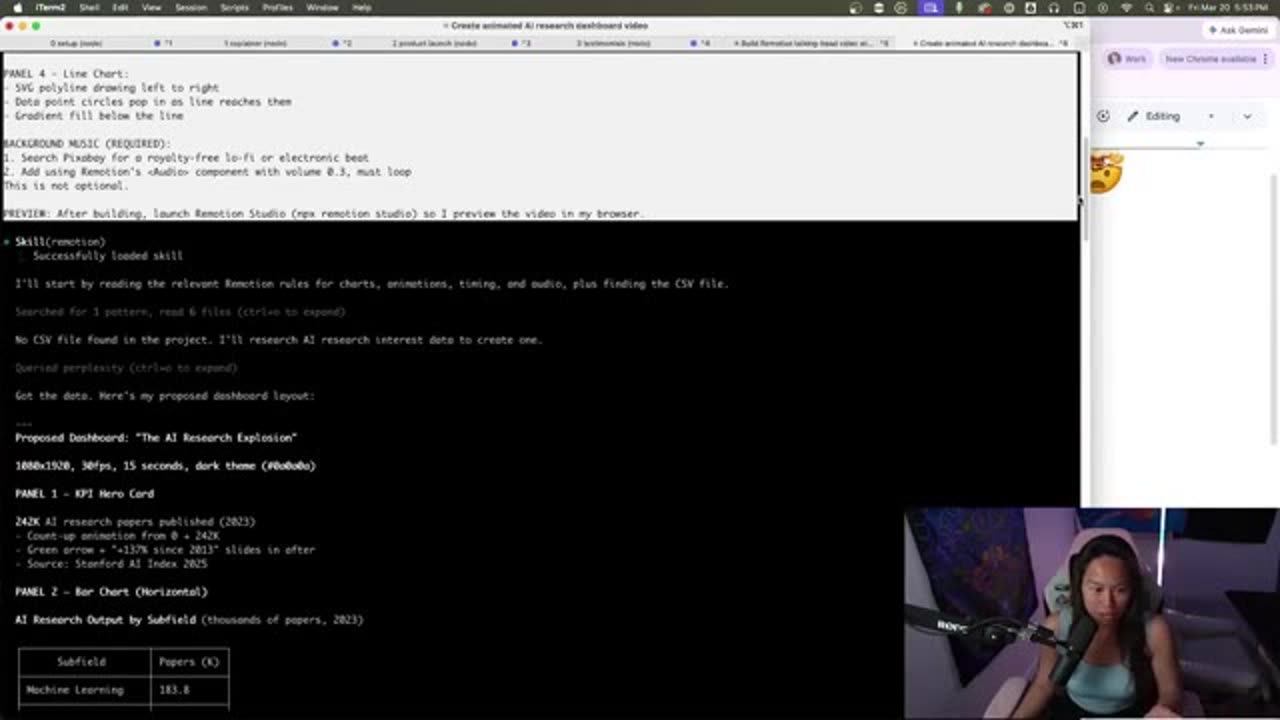
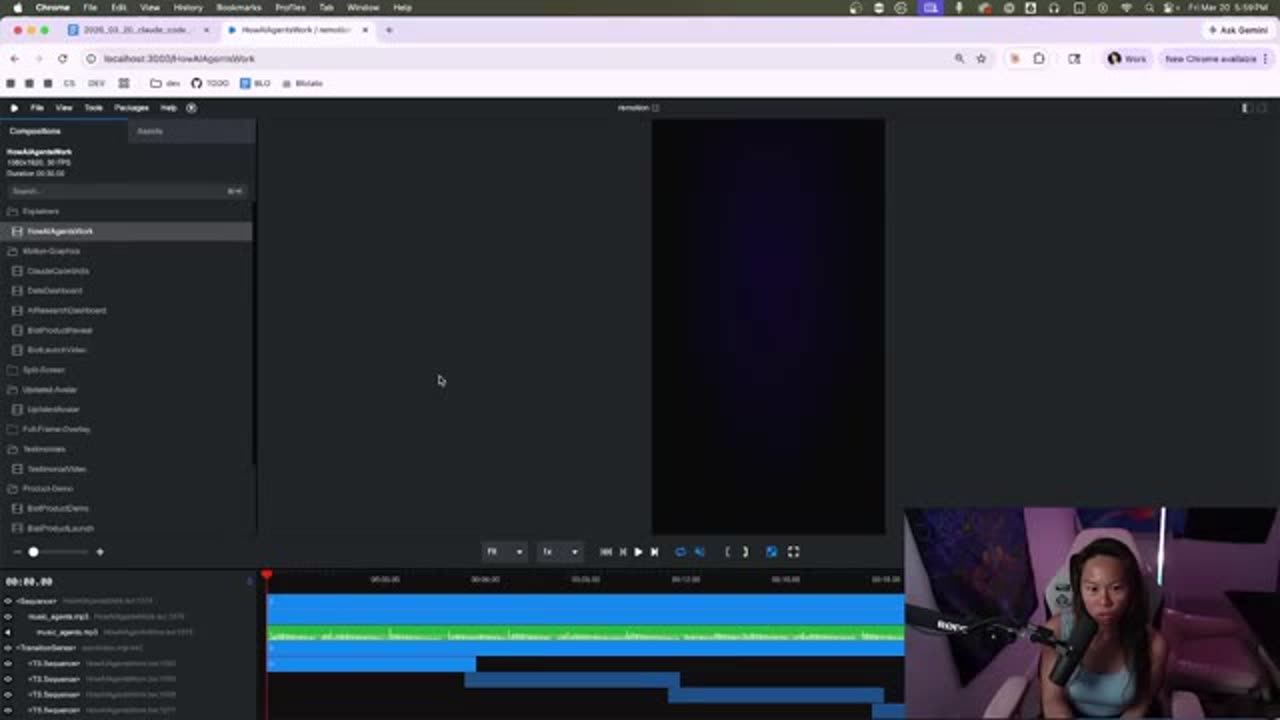
localhost:3000 — pick the composition on the left, scrub the timeline, tweak with a follow-up prompt, then export the MP4.Auto-post the finished video everywhere
- Export the MP4 from Remotion Studio (9:16 for Reels / TikTok / Shorts, 16:9 for YouTube).
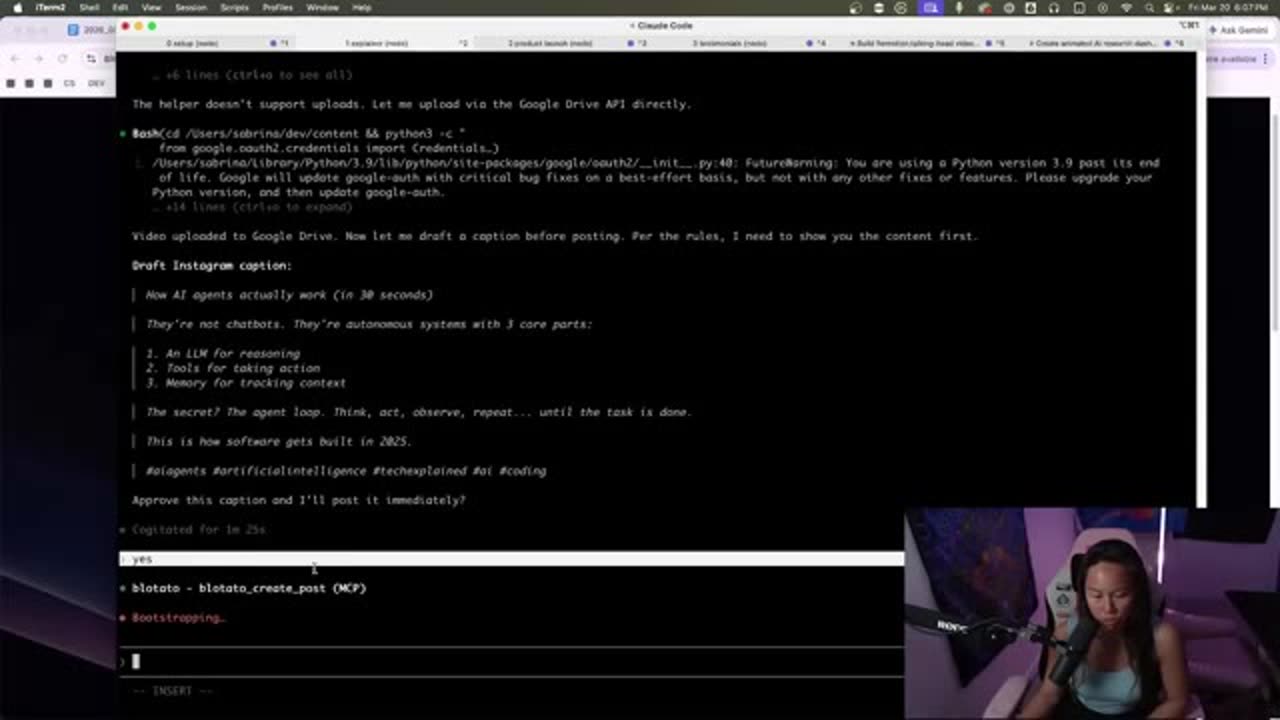
- Draft the caption — ask Claude Code to write a platform-matched caption and hashtags from the video content.
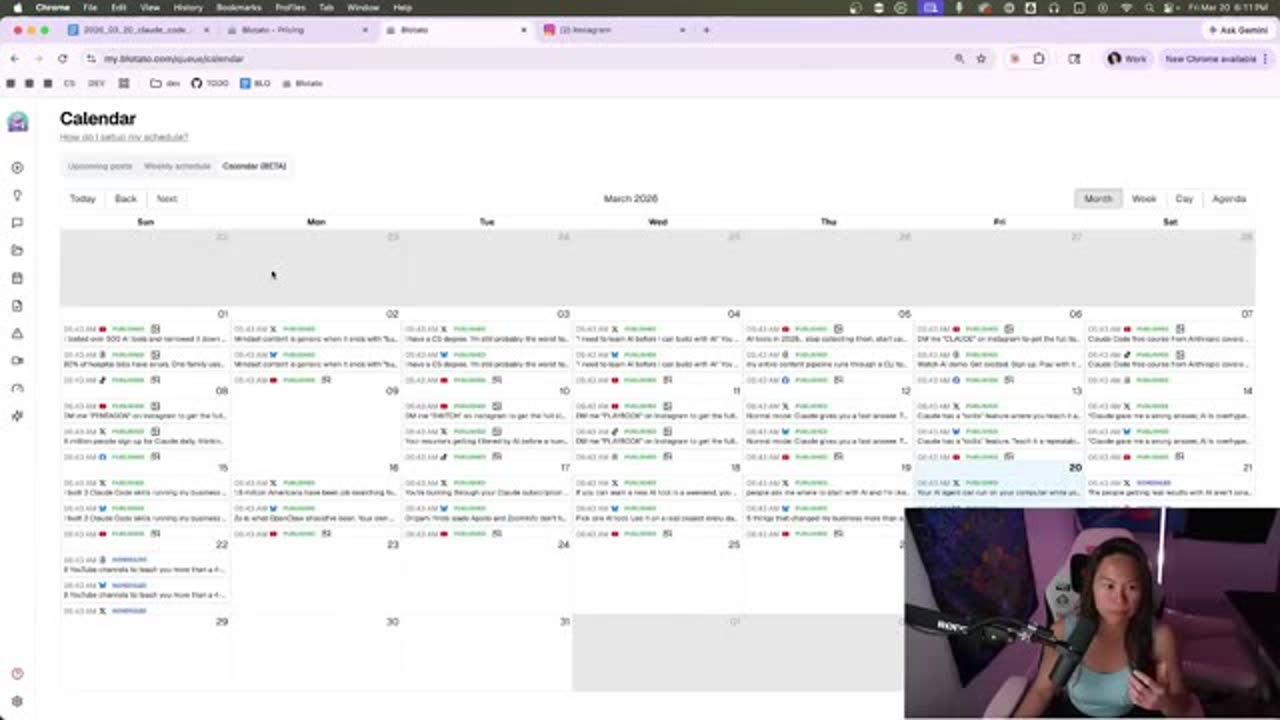
- Publish & schedule through Blotato: pick your channels, paste one short post, and it renders the correct ratio for each and schedules it.
All the Claude Code commands in one place
| Action | What to do |
|---|---|
| Open Claude Code | Terminal → type claude (needs the Claude Code CLI + an active plan; the $20 plan is fine). |
| Install Remotion | npx skills add remotion-dev/skills — or in Claude Code: "Install the pre-built skill Remotion." |
| Restart session | Fully quit and reopen Claude Code so the skill loads. |
| Add Claude in Chrome | Install the Claude Chrome extension so Claude can screenshot websites + reviews. |
| Make a video | Paste any of the five prompts above and approve the storyboard. |
| Preview | Open localhost:3000 (Remotion Studio) to preview, tweak and export the MP4. |
| Post | Draft the caption in Claude Code, then publish + schedule via Blotato. |
# 1 · launch Claude Code
claude

# 2 · install the free Remotion skill (run in your terminal)
mkdir playground && cd playground
npx skills add remotion-dev/skills

# 3 · verify, then fully restart Claude Code
ls .claude/skills/remotion/   # (project) or: ls ~/.claude/skills/

# 4 · in Claude Code, kick off a video (example)
#    "Using the Remotion best-practices skill, create an
#     educational explainer video titled 'How AI Agents Work'..."

# 5 · preview & export
# open http://localhost:3000 (Remotion Studio)Links & credits
- Reference tutorial · "Make Unlimited AI Video for Free with Claude!" — Sabrina Ramonov (YouTube)
- Remotion skill · github.com/remotion-dev/skills · remotion.dev
- Claude in Chrome · anthropic.com/claude-in-chrome
- Claude Code · claude.com/product/claude-code
- Blotato · my.blotato.com · screen-by-screen flow on this site
- Nano Banana clip generator · azizsaif.com/videos — the prompt-to-clip companion SOP